Impeccable 4.0, End to End — With Google's Models Making the Assets
The full walkthrough of the design skill worth installing: 23 commands, 64 catalogued tells, worlds, the finish reviewer and live mode. Wired to Google's GenMedia MCP servers instead of an aggregator, so Imagen and Veo run on your own project at a price you can look up.
Impeccable 4.0, end to end — with Google's own models making the assets.
There are a hundred skills and plugins claiming to fix Claude's front-end design problem. One of them is genuinely worth the install, and it just had a large upgrade. This is the whole tool, start to finish: what it is, what changed in 4.0, how to install it, and how to drive it from a blank folder to a landing page you would actually ship.
One deliberate substitution. The usual walkthrough wires Higgsfield in as the image and video generator. This one uses Google's own GenMedia MCP servers instead — Imagen and Veo on Vertex AI, running against your own Google Cloud project. Same place in the workflow, different supplier, and the reasons are at the end.
Snapshot: 10 August 2026. Counts, commands and model IDs are read off the project's own site, its repository and Google Cloud's documentation, all linked at the end. This tool ships often — open the pages alongside this one.
Two things, and both are about iteration rather than output.
If you used this months ago and stopped, these are the two changes that make it worth reopening.
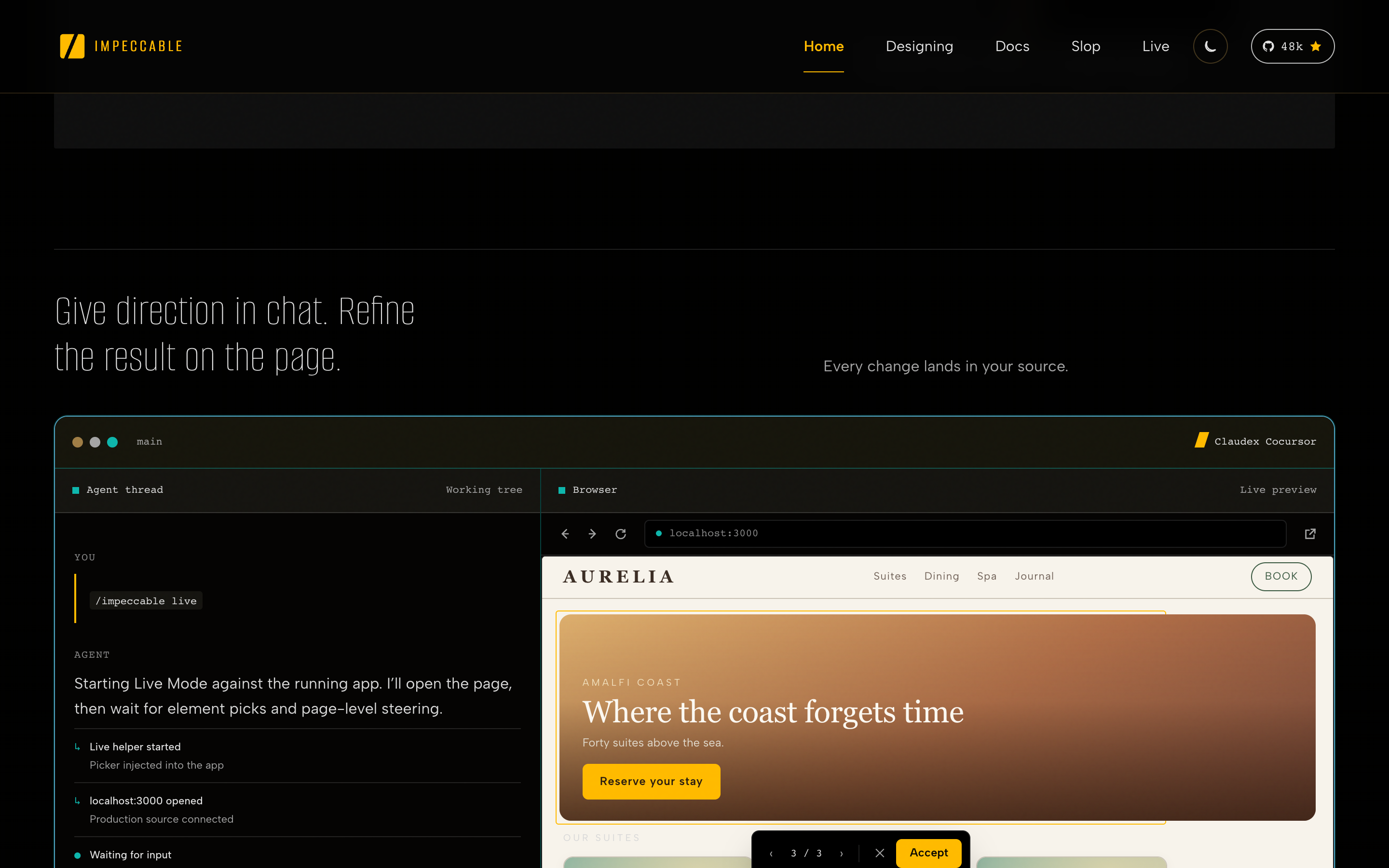
- Live mode is finished. It existed in the 2.x range as an alpha and was rough. It is now a proper in-browser surface: you pick an element on the page, ask for variants, and accept one straight into source. The design loop stops being "type at a terminal and hope".
- Worlds. The site describes a deck of 177 highest-rated worlds — complete graphic systems, each with its own design laws — dealt as challengers against whatever the model would have produced on its own. Instead of one generic first draft you get a spread of genuinely different directions, and you choose.
Worlds is the more interesting of the two, because it attacks the actual failure. A model asked for "a landing page" produces the average of every landing page it has seen. A model forced to commit to a specific graphic system produces something with a point of view — even if the point of view came out of a deck.
One skill, 23 commands, and a catalogue of things not to do.
Impeccable is a free, open-source skill, Apache 2.0, sitting at 57.1k stars and installing into fourteen different harnesses — Claude Code, Cursor, Codex, Copilot, Gemini CLI and the rest. Its thesis is narrow and useful: name the patterns that expose AI-generated work, then teach the agent to avoid them.
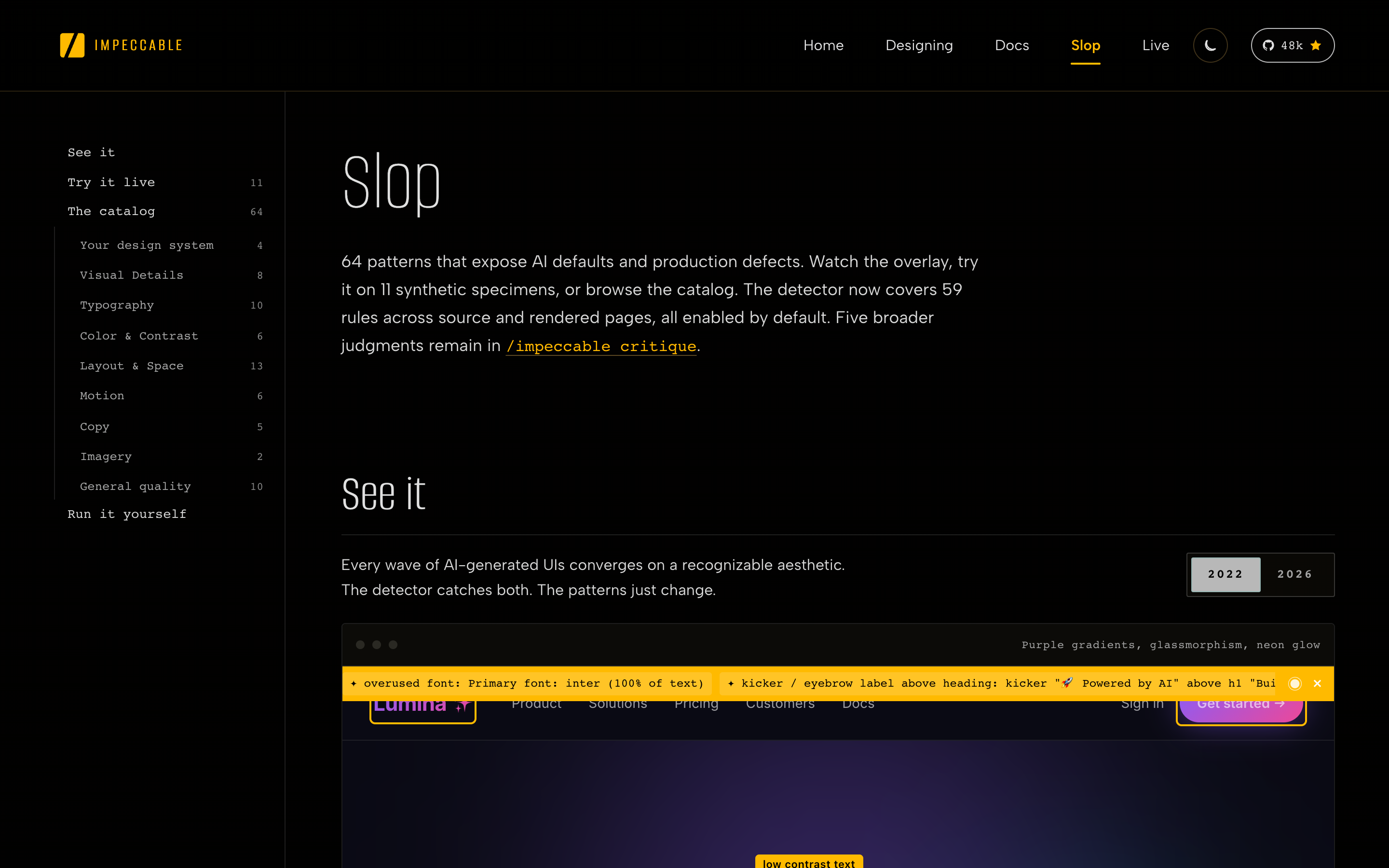
/impeccable critique.The 23 commands cover a whole working process rather than one look:
- Plan —
craft,init,shape - Judge —
critique,audit,document,extract - Adjust —
bolder,quieter,distill,colorize,typeset,layout - Finish —
polish,harden,onboard,clarify,adapt,optimize - Push —
animate,delight,overdrive,live
That bolder and quieter both exist is the tell that this is a vocabulary and not a style. A one-trick skill has no quieter — it only knows how to add. The project's own site shows a before-and-after pair for each command, which is the fastest way to understand what any of them actually do.
One command, and then the generator.
The skill itself:
$ npx impeccable installIf that is not how you like to work, the Claude Code plugin route does the same job:
$ /plugin marketplace add pbakaus/impeccable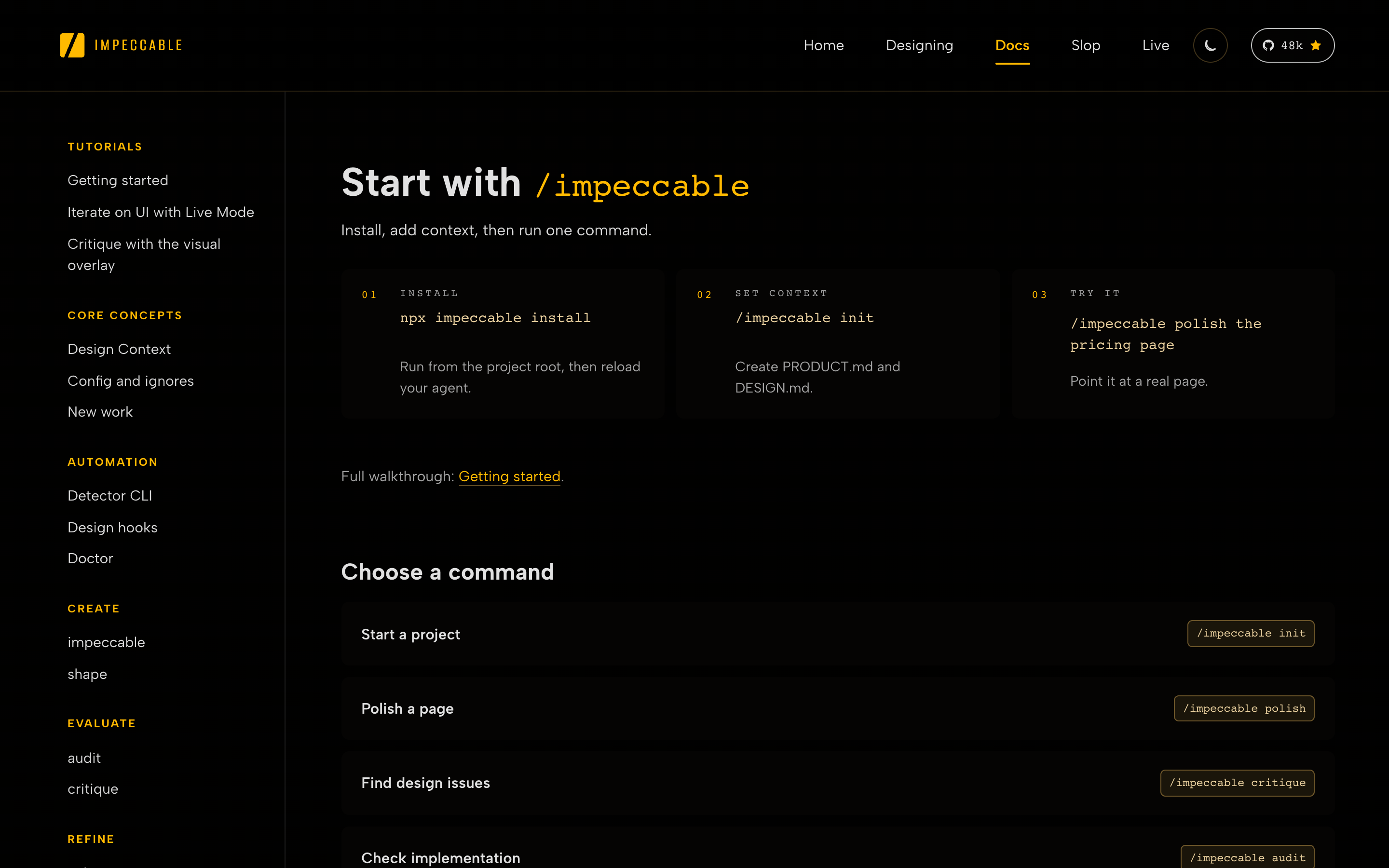
Either way, the second half is the part this walkthrough does differently. Impeccable calls out to an image and video generator when it builds worlds and when it needs assets, and it needs something wired in to call.
GenMedia gives you Imagen and Veo as MCP tools, on your own project.
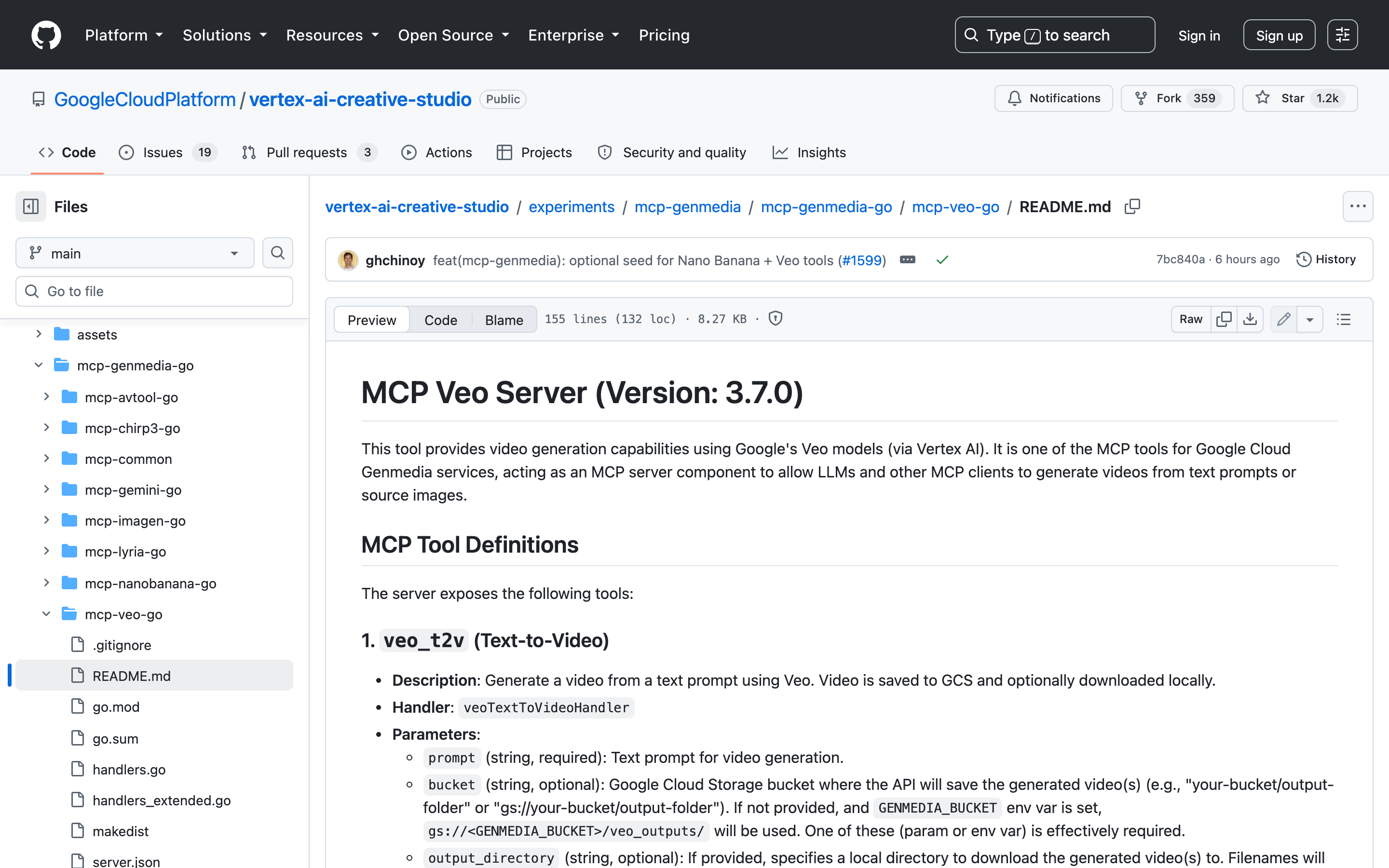
Google publishes a set of MCP servers for its generative media models as part of Vertex AI Creative Studio. It is not a third-party aggregator — it is Google's repository, calling Google's models, billed to your own Cloud project.
The set covers Imagen, Veo, Gemini Image, Gemini TTS, Chirp 3 HD, Lyria and an AVTool for stitching media together. Between them: Imagen 3 and 4, Gemini image models, and Veo 3 and 3.1.
$ curl -sL https://raw.githubusercontent.com/GoogleCloudPlatform/vertex-ai-creative-studio/main/experiments/mcp-genmedia/mcp-genmedia-go/install-online.sh | bashThen point it at your project. The servers read plain environment variables:
GOOGLE_CLOUD_PROJECT=your-project-id
GOOGLE_CLOUD_LOCATION=us-central1
GENMEDIA_BUCKET=your-bucket-for-output
What Claude Code sees once it is connected is a small, blunt set of tools. Images come from one:
imagen_t2i— text to image. Takesprompt,model,num_images,aspect_ratio,gcs_bucket_uri,output_directory.
Video comes from six, and the spread of them is the interesting part:
veo_t2v— text to video.veo_i2v— image to video. This is the one that matters for design work: generate a still you like, then animate that exact still.veo_first_last_to_video— interpolate between two frames you supply, which is how you get a clip that loops.veo_extend_video— make an existing clip longer.veo_reference_to_videoandveo_ingredients_to_video— build a shot from reference material.
They share the parameters you would expect: prompt, model, num_videos, aspect_ratio, duration, seed, bucket, output_directory. A seed is worth noticing — it is what makes a generation repeatable, and almost nothing else in this category gives you one.
the aiplatform.googleapis.com API requires a quota project, which is not set by default. Fix it once with gcloud auth application-default set-quota-project YOUR_PROJECT_ID. This is not mentioned on the model pages you would read first, and it will cost you twenty minutes otherwise./impeccable init interviews you before it builds anything.
Make an empty folder, open Claude Code in it, and run:
$ /impeccable initIt asks three things, and how you answer decides most of the output.
- What are you building? Be specific. "A landing page" gets you the average of every landing page; "a landing page for an AI analytics product called Pathfinder" gets you something with a subject.
- What stack? If you have no opinion, say so and let it choose — for a prototype this genuinely does not matter yet.
- What evidence do you have? Screenshots, real numbers, real copy. If you have none, tell it to invent placeholder data and move on; you can replace it later. This is the field people over-think.
It writes two files out of that conversation: PRODUCT.md always, and DESIGN.md if you accept it. Every later command reads them, and they are the reason the tenth command still knows what you are building.
The field worth slowing down on is anti-references: the things near enough to be tempting that are wrong for you. It is the highest-signal answer in the whole interview and the one almost everyone leaves blank.
It generates the options, opens them in a browser, and waits.
After the interview, Impeccable calls the generator to render the worlds — the different aesthetic directions your page could take — and serves them on localhost so you can look at them rather than imagine them. With the GenMedia servers wired in, that call is imagen_t2i against your own project.
What you get is a spread of genuinely different hero sections for your product, not a gallery of generic templates. That distinction is the whole point of the feature: you are picking a direction with your actual copy and subject in it.
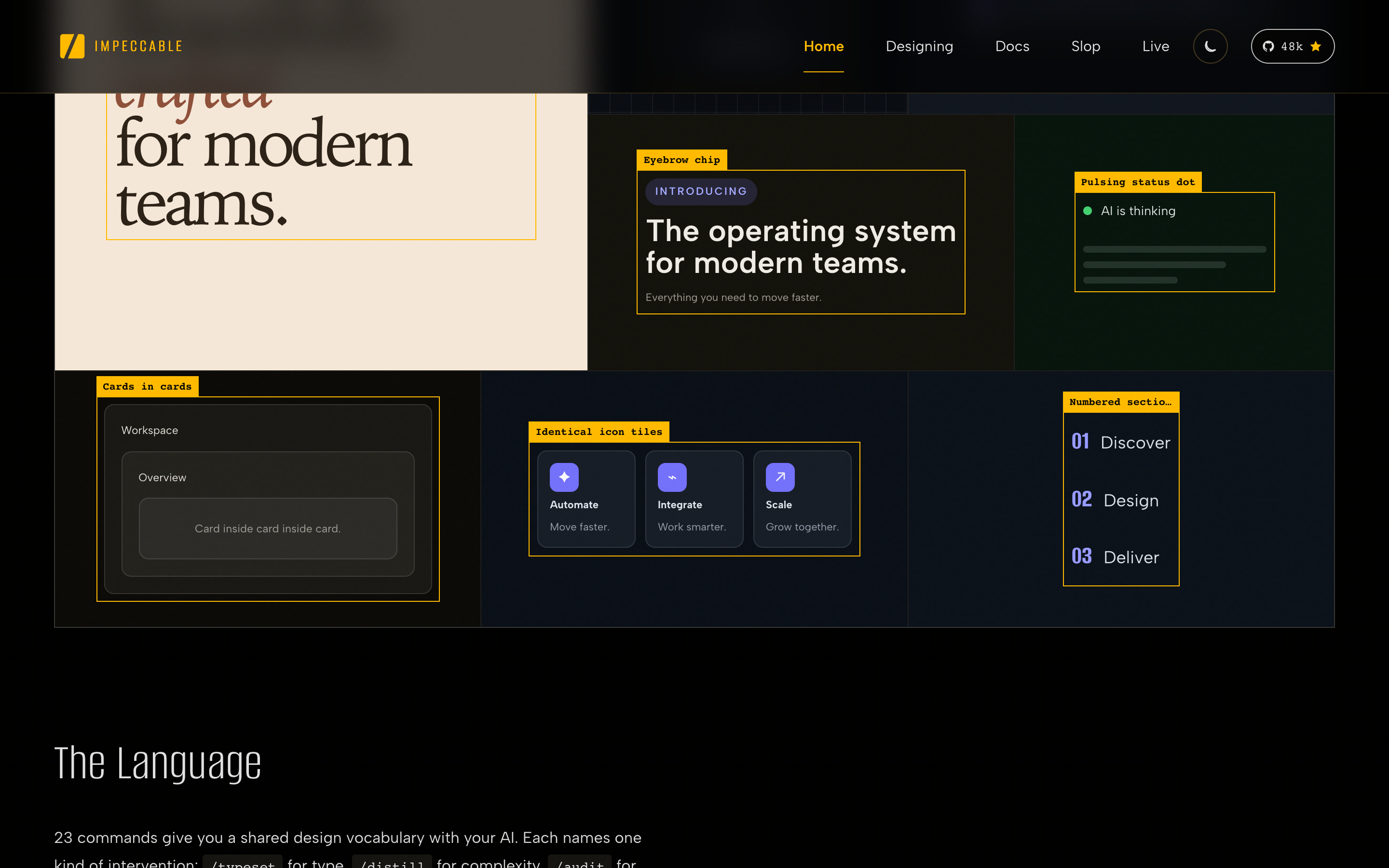
Three controls, and all three matter:
- Pick one and press build.
- Reroll if none of them are close.
- Steer — an optional prompt box. "I like number three, give me more like that" is a legitimate and very effective instruction.
Choose one and it hands back to the terminal, which starts building the prototype in that style — and then does the same trick one level down, offering variations within the style you picked. You choose again. The terminal narrates it: timeline approved, approval recorded in the surface brief, craft floor loaded, building.
Lower floor, higher ceiling — and that is the right trade.
There are skills that produce one specific kind of beautiful website. Point them at anything and you get that website. The floor is high: you will never get something ugly. The ceiling is exactly as high as the floor, because it only knows the one thing.
Impeccable is general, which means it has a lower floor — there is more room for you to steer it somewhere bad. It also means that if you actually work with it, you end up somewhere the one-trick skill could never reach, because the direction came from you and the vocabulary just executed it.
You can see the philosophy in the structure: at every step it shows you options and waits. It is not trying to be right on the first try. It is trying to make the second try cheap.
It finishes by sending a fresh agent to check its own work.
At the end of the first build it launches a finish reviewer subagent with a clean context window, whose only job is to go over what was produced and look for the slop patterns the skill exists to prevent.
That fresh context is the point. The agent that just spent twenty minutes building something is the worst possible judge of it — it knows what it meant, so it reads the intent rather than the result. A reviewer that has never seen the conversation reads what is actually on the page.
It is the same reason you cannot proofread your own writing an hour after finishing it, implemented as a subprocess.
Point at an element, ask for three versions, keep one.
The first result will not be finished. It is not supposed to be — treating any of this as a one-shot is the mistake. This is the loop that makes iteration cheap:
$ /impeccable live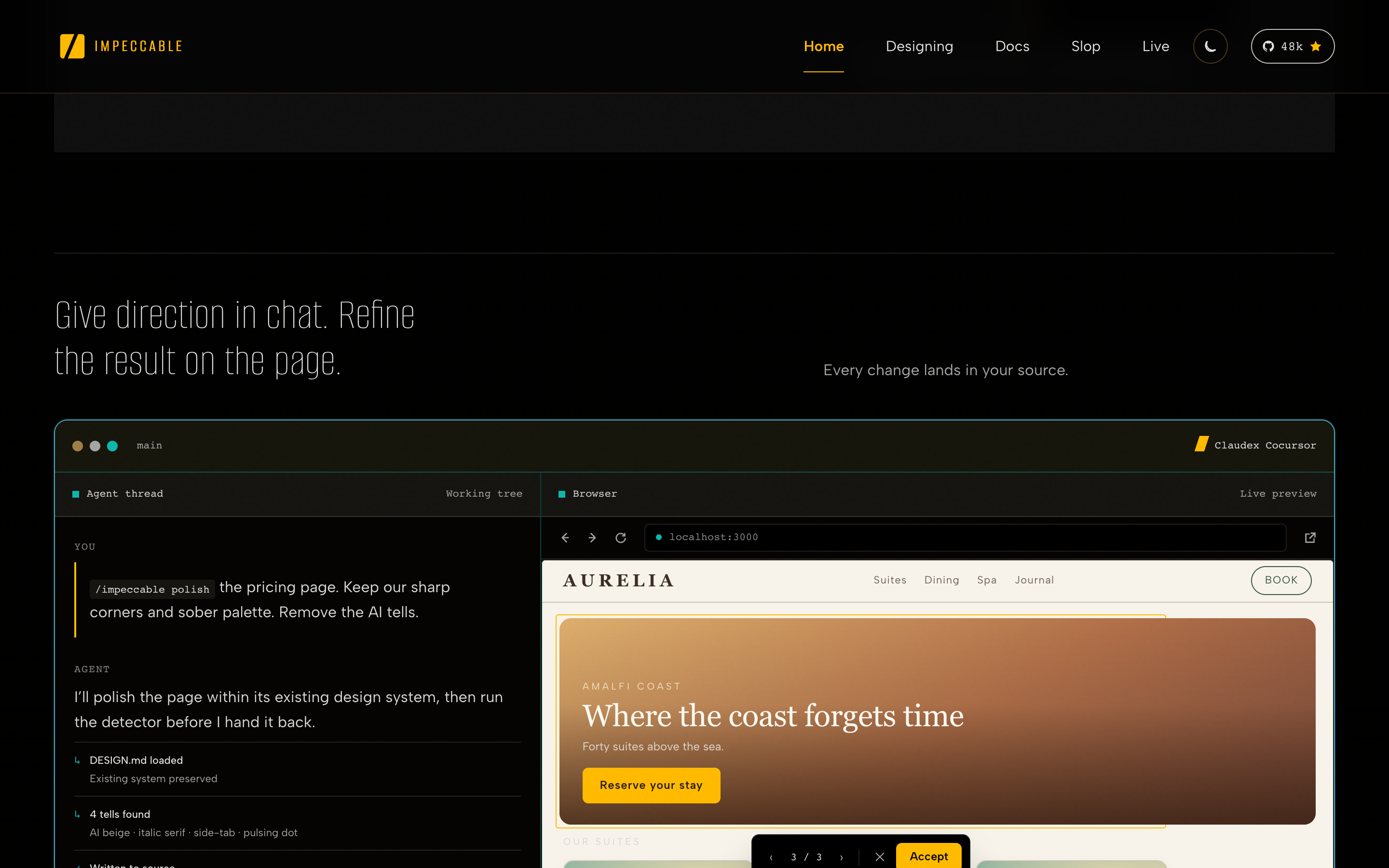
It serves the page on localhost:4321 with a control bar. The control you will use most is pick element: click any component on the page and a prompt window opens against that component alone.
From there you can:
- Ask for one to four variations in a single go.
- Choose a domain instead of writing a prompt — bolder, quieter, polish, typeset. These are the same 23 commands, scoped to the thing you clicked. You do not have to describe what you want if one of them is already the word for it.
- Talk to it — there is a microphone.
The variants come back rendered, and each one has its own tuning controls — tilt this, stamp border on or off. So it is not three options, it is three options each with a small dial set. Accept one and it goes back to the terminal and into your source.
Three other things live in that bar and are easy to miss:
- Detect — runs the anti-pattern check against the page in front of you. Most useful on a page Impeccable did not build, since a fresh build has already been through the reviewer.
- DESIGN.md — your whole design file, rendered: colours, components, button treatments. You can read the raw file too.
- A prompt window for the whole page, which is the same as typing in the terminal.
Whatever you do here, the terminal session you started in is polling for live-mode events, so both surfaces stay in step. You are never choosing between them.
Live mode is for millimetres. The terminal is for direction.
The split is clean once you have felt it:
- Live mode — micro adjustments and per-component variants. A button, a card, a heading treatment.
- The terminal — layout changes, structural rewrites, or scrapping the direction entirely.
And when you want a different direction, do what you would do with a human designer: show them something. Keep an inspiration library — a folder of hero sections and layouts you have saved — and point Claude Code at it, or just paste a screenshot in:
Take a look at this reference. The site is running on localhost:4610. I want to go in a new direction with the landing page — this ASCII-art style. Use the generator if you need background assets. Build me a variation like that.
What comes back is a genuine departure, and it is still an Impeccable page: the reviewer runs on it, the anti-patterns are still checked. You get the new direction without giving up the floor.
With the GenMedia servers wired in, "use the generator if you need background assets" resolves to imagen_t2i for stills and veo_i2v if you want that still to move — generated into your own bucket, at a per-image and per-second price you can look up.
Three differences, and one of them is not in the tool's favour.
The standard version of this walkthrough uses an aggregator. It is genuinely more convenient, so here is the honest comparison rather than a sales pitch.
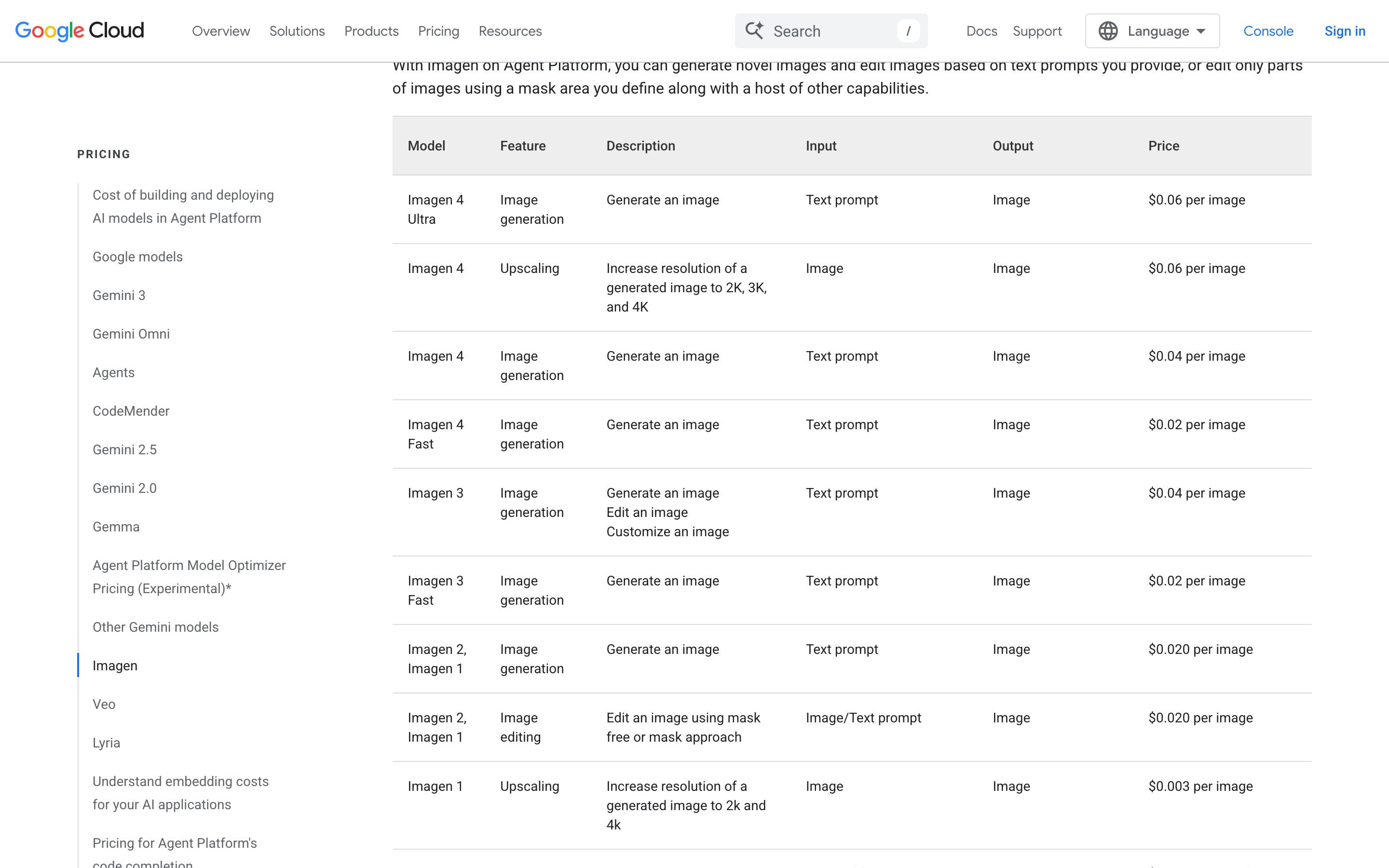
- The price is a number you can look up. Imagen 4 Fast is $0.02 an image, Imagen 4 is $0.04, Ultra $0.06. Veo 3.1 is $0.40 a second with audio and $0.20 without; Veo 3.1 Lite is $0.05 and $0.03. Credits in someone else's bucket cannot be reasoned about like that.
- The output is yours. It lands in your own Cloud Storage bucket, in your own project, under your own IAM and retention rules. When a client asks where the assets are, that is a real answer.
- It is more setup. A project, an enabled API, a quota project, a bucket, an install script. The aggregator is one OAuth click. If you generate a handful of assets a month, the aggregator is the right answer and this is over-engineering.
One constraint worth knowing before you build on it: Veo runs in us-central1 only, with a quota of 50 requests per minute. If you have a data-residency rule, that decides it for you.
It removes the tells. It does not supply the taste.
Two things worth saying plainly, because the enthusiasm around this category tends to skip them.
Clean is not the same as good. The detector's clean run means the documented tells are gone. It says nothing about whether the page works, whether the flow makes sense, or whether anyone wants to use it. That is still your problem, and it is the harder half.
At 57.1k stars, a lot of people are now avoiding the same 64 things. If everyone suppresses the same tells, the absence of them becomes its own tell. Worlds is clearly a hedge against exactly that — a deck of committed graphic systems is a way of not converging — but the pressure is real and worth watching.
The rules are opinionated defaults, not laws. overused-font: Inter is a judgement. If Inter is your brand face, the right answer is a narrow ignore with a reason, not a new typeface.
Big picture in the terminal, small picture in live mode.
Starting from nothing. init, answer honestly, pick a world, pick a variation, let the reviewer run. You will have something real in one sitting.
You have a page you already dislike. Skip worlds. Run detect on it in live mode to see what fires, then polish and typeset section by section.
You know what you want it to look like. Do not describe it — show it. Reference images in the terminal will get you there faster than any number of adjectives.
You need assets. Imagen for stills at two to six cents, veo_i2v if a still needs to move. Generate the image first, choose it, then animate the one you chose — it is an order of magnitude cheaper than rerolling video.
You just want it to stop looking AI-generated. That is the detector, and it is one command with an exit code. It is the smallest possible way in.
The best front-end design skill in the game, and it still needs you.
Impeccable is worth the install. It gives an agent a vocabulary it did not have, it shows you options instead of guessing, it checks its own work with fresh eyes, and it makes the second attempt cheap enough that you actually make one.
Swapping the generator for Google's own servers changes one thing in the workflow and two things about the bill: you can see the price, and the output is yours.
What none of it does is decide what your product should look like. Big picture in the terminal, small picture in live mode — and the picture itself is still yours.
Everything above, traceable to a primary source.
- docs.cloud.google.com Vertex AI — Veo 3.1 model card (model ID, GA, specs, regions, quota)
- docs.cloud.google.com Vertex AI — Veo 3.1 Fast
- docs.cloud.google.com Vertex AI — Generate videos from a text prompt (predictLongRunning + polling)
- docs.cloud.google.com Vertex AI — Generate videos from an image
- cloud.google.com Vertex AI — Generative AI pricing, the Veo section
- docs.cloud.google.com Vertex AI — Method: models.predictLongRunning
- docs.cloud.google.com Vertex AI — Veo video generation API reference
- cloud.google.com Google Cloud — ADC troubleshooting: user credentials need a quota project
- docs.cloud.google.com Google Cloud — Video generation prompt guide
- code.claude.com Claude Code — running on Google Cloud's Agent Platform (Vertex)
- impeccable.style Impeccable — the design skill the assets are for
- higgsfield.ai Higgsfield CLI — the aggregator this replaces